













Does cctop slow down my coding tool?
No. Each integration does minimal work on session events: it calls the bundled helper, writes a small JSON file, and returns immediately.
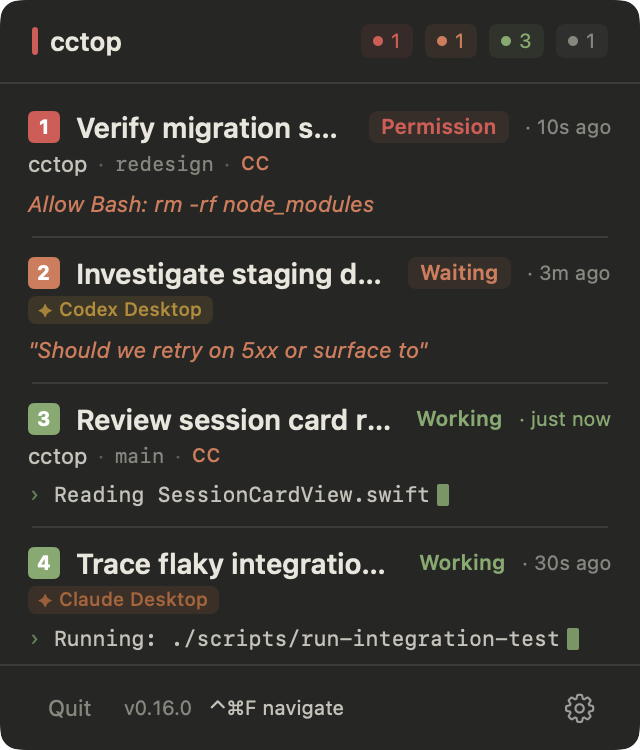
See which session is waiting on you. Jump there with a keystroke.
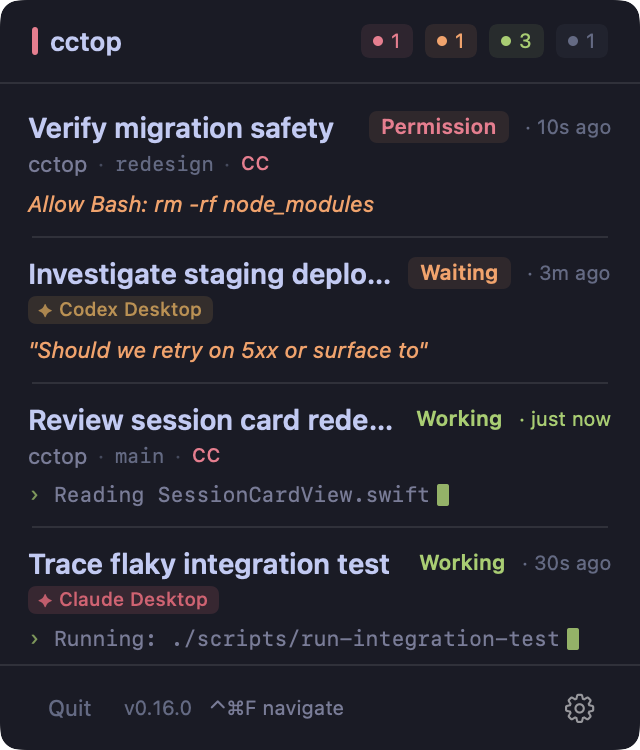
Each tool reports session events locally; cctop turns them into one menubar view and jumps you back to the right editor or terminal window.
* Kitty targets the exact window when remote control is enabled in kitty.conf. Without it, falls back to app activation.
† Ghostty 1.3.0+ targets the session terminal by writing a temporary OSC 7 cwd marker to its TTY, matching that marker via AppleScript, then restoring the real cwd. If the TTY is unavailable, it falls back to working-directory matching.
‡ Apple Terminal targets the tab by tty via AppleScript. Falls back to app activation inside a multiplexer (tmux, screen), where the captured tty is the multiplexer pane's pty rather than the Terminal tab's.
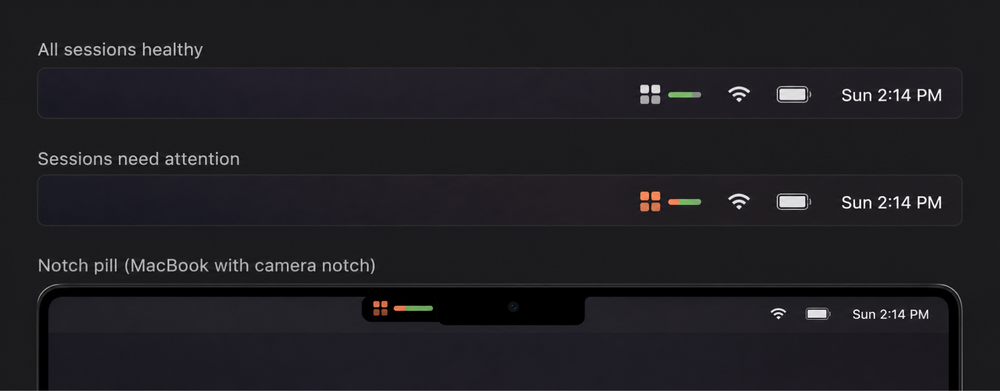
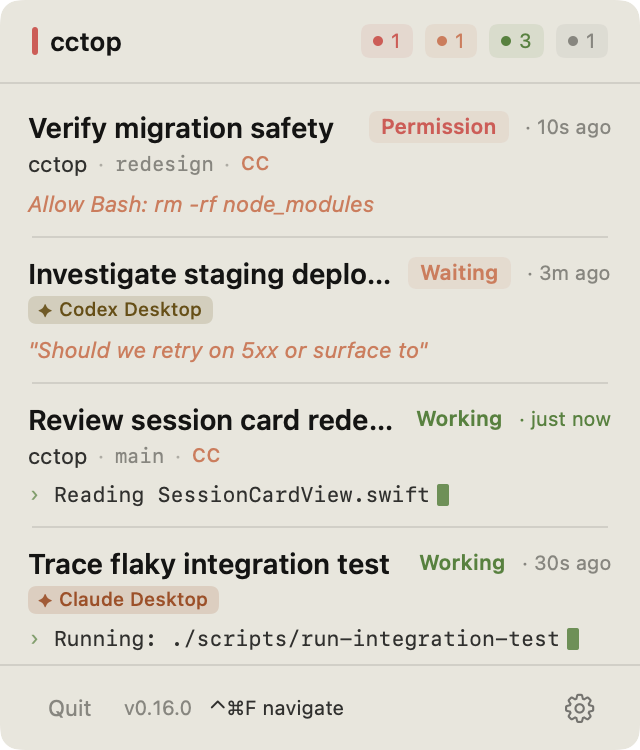
cctop turns every AI coding session into a menubar signal: green means work is moving, orange or red means one session needs attention.
The icon stays visible while you work, including a compact pill for notched MacBooks. When the color changes, you know when to open cctop and jump back.
Hit a global hotkey to overlay numbered badges on every session card, then press the number to jump instantly.
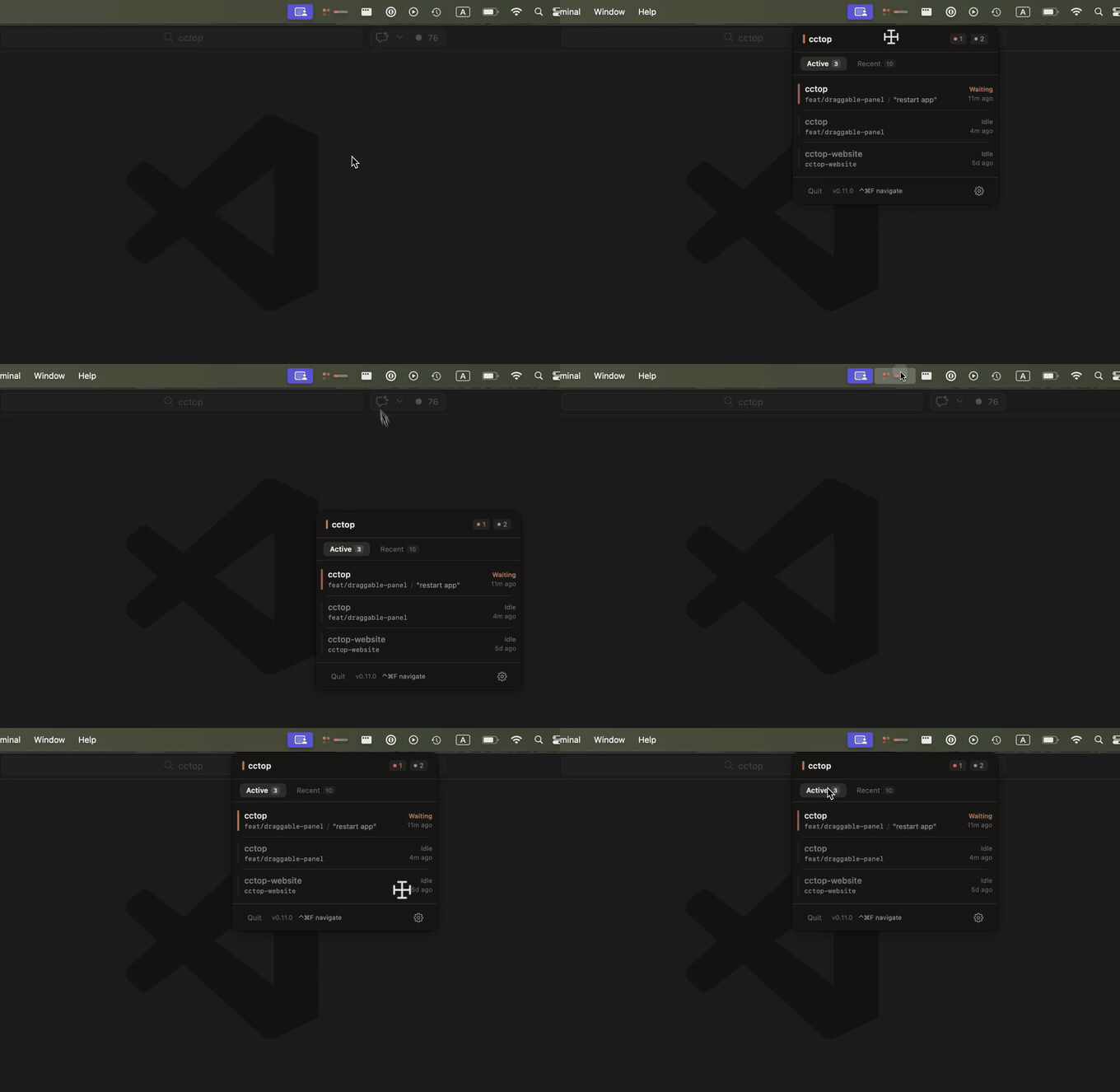
Drag the header to reposition the panel anywhere on screen. Position persists across launches, and double-click snaps it back to the menubar anchor.
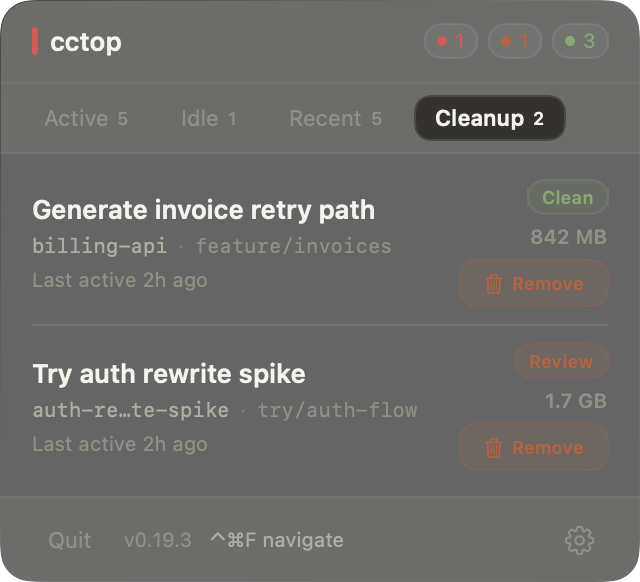
Cleanup finds ended agent worktrees that still exist on disk, especially CLI or manual worktree runs. cctop checks Git state before offering the right remove action.
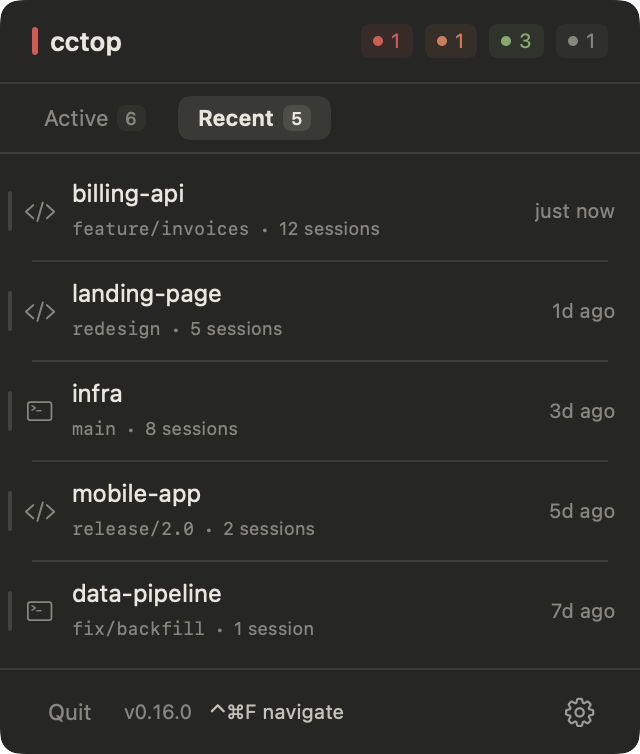
A second tab keeps session history so you can reopen past projects easily.
Color schemes inspired by developer tools. Switch in Settings, then choose light, dark, or system mode.
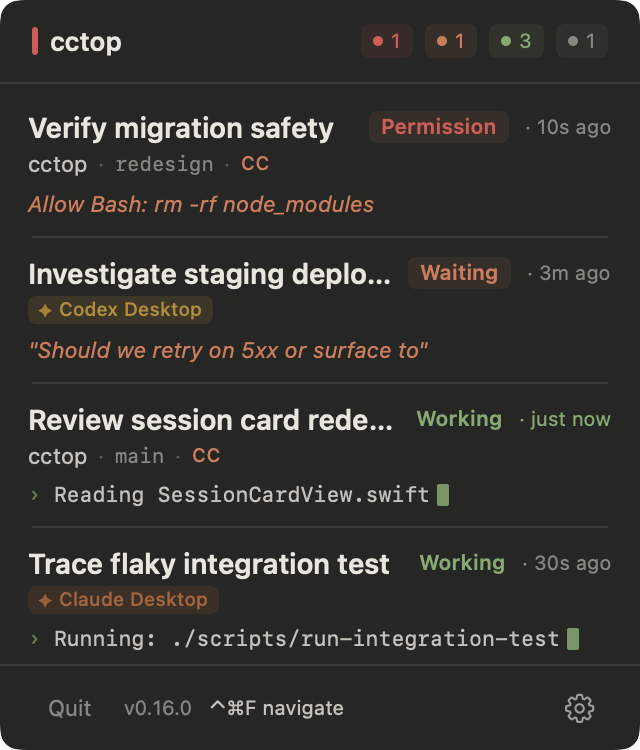
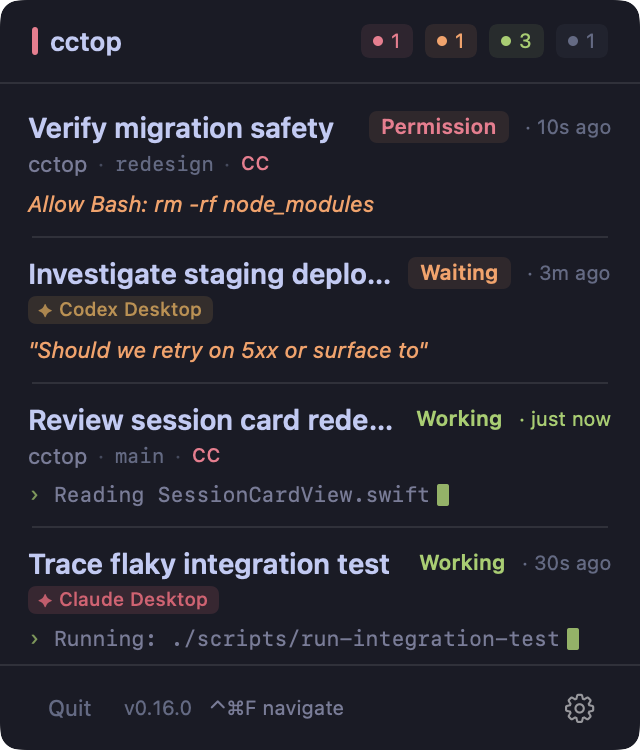
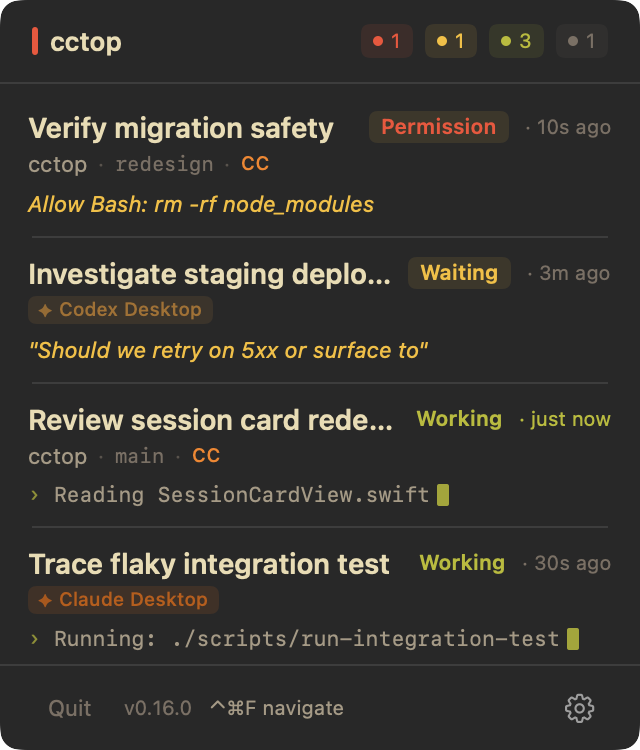
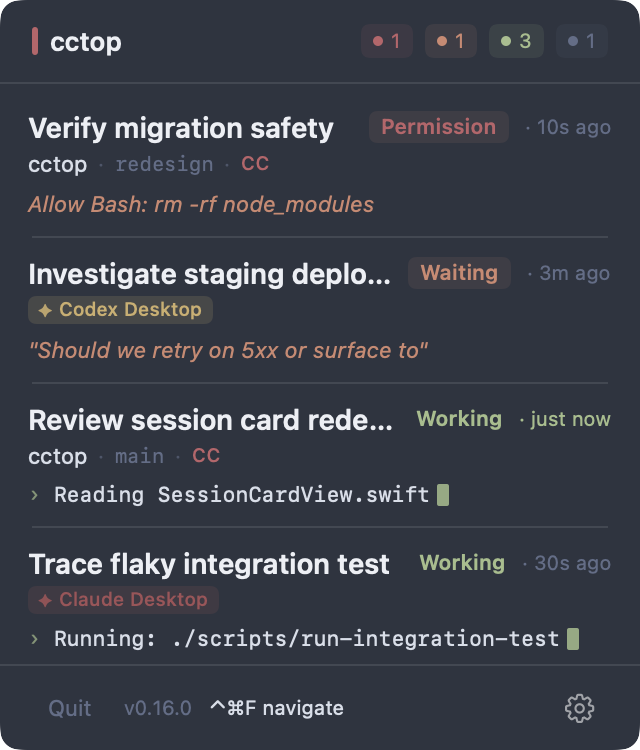
Download the latest release, open the DMG, and drag cctop.app into /Applications. Signed release builds can check for new updates automatically.
Signed with Apple Developer ID and notarized by Apple. Runs on macOS 13+. Signed release builds can check for new updates automatically.
$ brew install --cask st0012/cctop/cctopOpen Settings. Coding clients appear under Tools; companion apps such as Stream Deck appear under Integrations.
Short answers for performance, privacy, setup, and platform details.
No. Each integration does minimal work on session events: it calls the bundled helper, writes a small JSON file, and returns immediately.
No analytics, no telemetry, and no session upload. Signed release builds use network access for automatic update checks and downloads, but session data stays on your machine in ~/.cctop/sessions/ as plain JSON. Display integrations read ~/.cctop/display-state.json; each session entry contains only its display identity, name, status, and color, alongside schema, generation-time, and cctop process-liveness metadata.
No. Once your tools are connected, new sessions are automatically tracked. There's no per-project setup.
Some desktop clients remove their managed worktree when you archive a session. In that case, there is nothing left for cctop to remove, so Cleanup stays quiet. Cleanup is most useful for CLI and manual-worktree sessions where the linked Git worktree remains on disk after the session ends.
Codex only runs hooks you've explicitly reviewed and trusted. cctop can install the hooks, but Codex Desktop does not currently surface the hook-review prompt. Start one Codex CLI session in a terminal and trust the hooks; Codex Desktop shares that trust state.
Plugins look for the cctop helper inside /Applications/cctop.app or ~/Applications/cctop.app. Installing elsewhere breaks the integration.
/Applications/./Applications.rm -rf ~/.cctop.